
If you’re switching from Windows and searching for how to open Task Manager on Mac, here’s the short answer: macOS doesn’t have an app literally called “Task Manager.” The closest equivalent is Activity Monitor, which shows running processes and how much CPU, memory, and other resources they’re using.
If your goal is simply to close a frozen app right now, you don’t even need Activity Monitor. Force Quit does that faster. This guide walks through exactly how to open Task Manager on Mac using both tools, plus how to read what Activity Monitor shows you once it’s open.
Is There a Task Manager on Mac?
Not by that name. Windows uses Task Manager to view running programs, check resource usage, and end tasks that stop responding. macOS splits that same job across two tools.
- Activity Monitor is the closest match to Task Manager’s Processes and Performance tabs. It lists every running process and how much CPU, memory, energy, disk, and network activity each one uses.
- Force Quit is a smaller, faster tool for one specific job: closing an app that has stopped responding. It doesn’t show resource usage.
Activity Monitor and Task Manager are not the same application with different names. They’re built differently, and Activity Monitor generally shows more detail than most people need day to day. If your only goal is to close a frozen app, Force Quit is usually the quicker option.
Why Doesn’t macOS Have a Task Manager?
This is worth understanding before you go looking for a menu item that doesn’t exist. Windows and macOS were built by different companies with different design philosophies, and Task Manager is simply a Windows naming convention that Apple never adopted.
Apple split the same functionality into separate tools instead of combining everything into one window. Force Quit exists specifically for ending unresponsive apps, and Activity Monitor exists specifically for viewing detailed resource usage. If you’re used to Windows, where Ctrl+Shift+Esc opens one window that does both jobs, this split can feel unnecessary at first. In practice, most people only ever need Force Quit, and only reach for Activity Monitor when something needs closer investigation.
So when someone asks how to open Task Manager on Mac, the honest answer is that there are two tools worth knowing, not one direct substitute. The next sections cover exactly where to find each of them.
How to Open Task Manager on Mac
The most common way to open the Mac equivalent of Task Manager is through Spotlight, since it works from anywhere without navigating folders.
- Press Command (⌘) + Space to open Spotlight.
- Type Activity Monitor.
- Press Return to launch it.
Activity Monitor opens with a list of running processes, sorted by CPU usage by default. From here, you can check resource usage or select a process to quit it.
How to Open Activity Monitor Using Spotlight
This is the same method above, worth knowing as its own shortcut if you want to jump straight to it:
- Press Command + Space.
- Type Activity Monitor (you’ll usually see it after typing “activ”).
- Press Return.
This is the fastest method on any Mac, since Spotlight works regardless of which app you’re currently using, whether you’re in a browser, a document, or another app entirely. You don’t need to minimize anything or switch windows first.
If you use Activity Monitor often, it’s worth keeping it in your Dock so you don’t need Spotlight every time. Right-click its icon while it’s open, hover over Options, and choose Keep in Dock. From then on, opening Task Manager on Mac is just a single click away.
How to Find Activity Monitor Through Finder
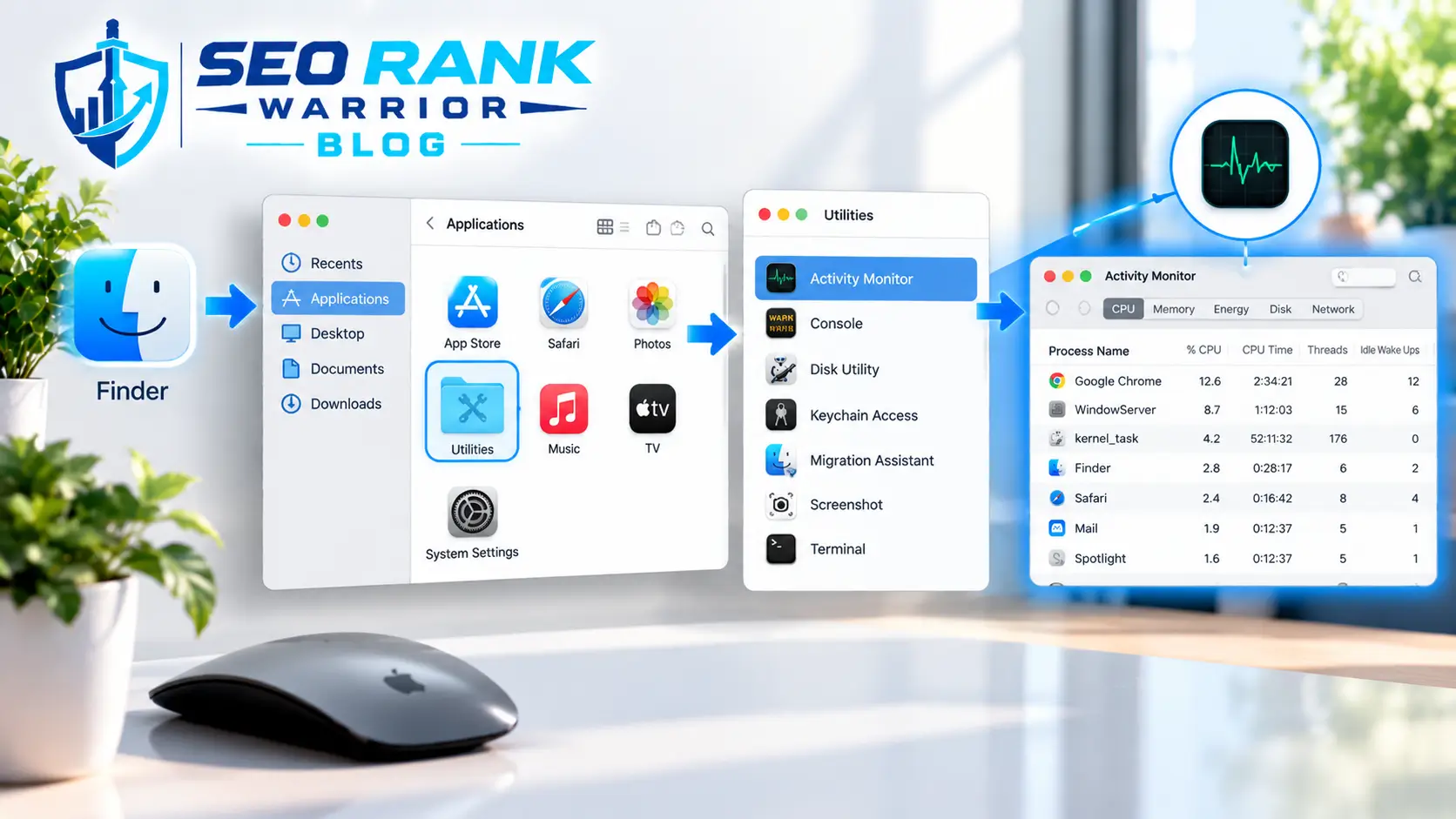
If you’d rather browse to it manually, or want to see where it lives on your system:
- Open Finder from the Dock.
- Click Applications in the sidebar.
- Open the Utilities folder.
- Double-click Activity Monitor.
This is also where most of macOS’s other built-in system tools live, so it’s a useful folder to remember if you ever need to find Task Manager on Mac again without searching.
You can also reach the same folder through Launchpad. Open Launchpad from the Dock, click the Other folder, and select Activity Monitor from there. This method suits people who prefer browsing visually over typing a search term.
How to Open Activity Monitor Using Terminal
This method is optional and mainly useful if you’re already working in Terminal for something else.
- Open Terminal (also found in Applications > Utilities).
- Type the following command and press Return:
open -a “Activity Monitor”
This launches Activity Monitor the same way the other methods do. There’s no advantage to using Terminal for this specific task unless you’re scripting something or already have a Terminal window open.
Can I Set a Keyboard Shortcut to Open Task Manager on Mac?
There’s no built-in shortcut that opens Activity Monitor directly the way Ctrl+Shift+Esc does on Windows, but you can create one yourself.
- Open System Settings, then go to Keyboard.
- Click Keyboard Shortcuts, then select App Shortcuts.
- Click the + button to add a new shortcut.
- Choose Activity Monitor as the application.
- For the menu title, type Activity Monitor (matching the app’s window name), and assign a key combination such as Control + Shift + Esc.
One limitation worth knowing: this method brings Activity Monitor to the front only if it’s already open somewhere in the background. It won’t launch the app from a complete cold start. For a shortcut that opens Activity Monitor from anywhere, even when it isn’t already running, you’d need a separate launcher, such as a Shortcuts automation or a third-party app launcher. For most people, Spotlight is still the simplest way to open Task Manager on Mac without any extra setup.
How to Use Activity Monitor
Once it’s open, Activity Monitor organizes information into five tabs across the top. This is really where the answer to “how do I open Task Manager on Mac” becomes useful, since opening the app is only half the job. Knowing what each tab shows is what actually helps you solve a slow or misbehaving Mac.
CPU
Shows how much processing power each running process is using, sorted from highest to lowest. If your Mac feels sluggish, this tab usually reveals which app is responsible. Click the “% CPU” column header to sort by the heaviest user first.
Memory
Shows how much RAM each app or process is using, along with a Memory Pressure graph at the bottom. Green means memory is healthy, while yellow or red suggests your Mac is running low and could benefit from closing some apps.
Energy
Shows which apps are using the most battery on a laptop. Useful if your MacBook’s battery is draining faster than expected, since it can point to a specific app running heavier tasks in the background.
Disk
Shows how much data each process is reading from or writing to your storage. Helpful if your Mac feels slow specifically when saving or opening files.
Network
Shows how much data each process is sending or receiving. Useful if something seems to be using your internet connection when you’re not actively downloading or streaming anything.
You don’t need to understand every column to use Activity Monitor well. For most everyday problems, checking CPU and Memory covers it.
How to Force Quit an App on Mac
Activity Monitor is for investigating what’s happening on your Mac. Force Quit is for one specific job: immediately closing an app that has stopped responding.
The fastest way to open Force Quit:
- Press Command + Option + Esc at the same time.
- A window appears listing your open apps. Anything unresponsive is usually marked.
- Select the frozen app.
- Click Force Quit.
You can also reach it through the Apple menu in the top-left corner, then Force Quit, or by holding Option and right-clicking the app’s icon in the Dock, which changes “Quit” to “Force Quit.”
Force quitting closes the app immediately without saving anything, so any unsaved work in that app will be lost. It’s also worth giving an app a moment before force quitting it. Sometimes an app that looks frozen is just working through something heavy and recovers on its own within a few seconds.
How to Find a Frozen App in Activity Monitor
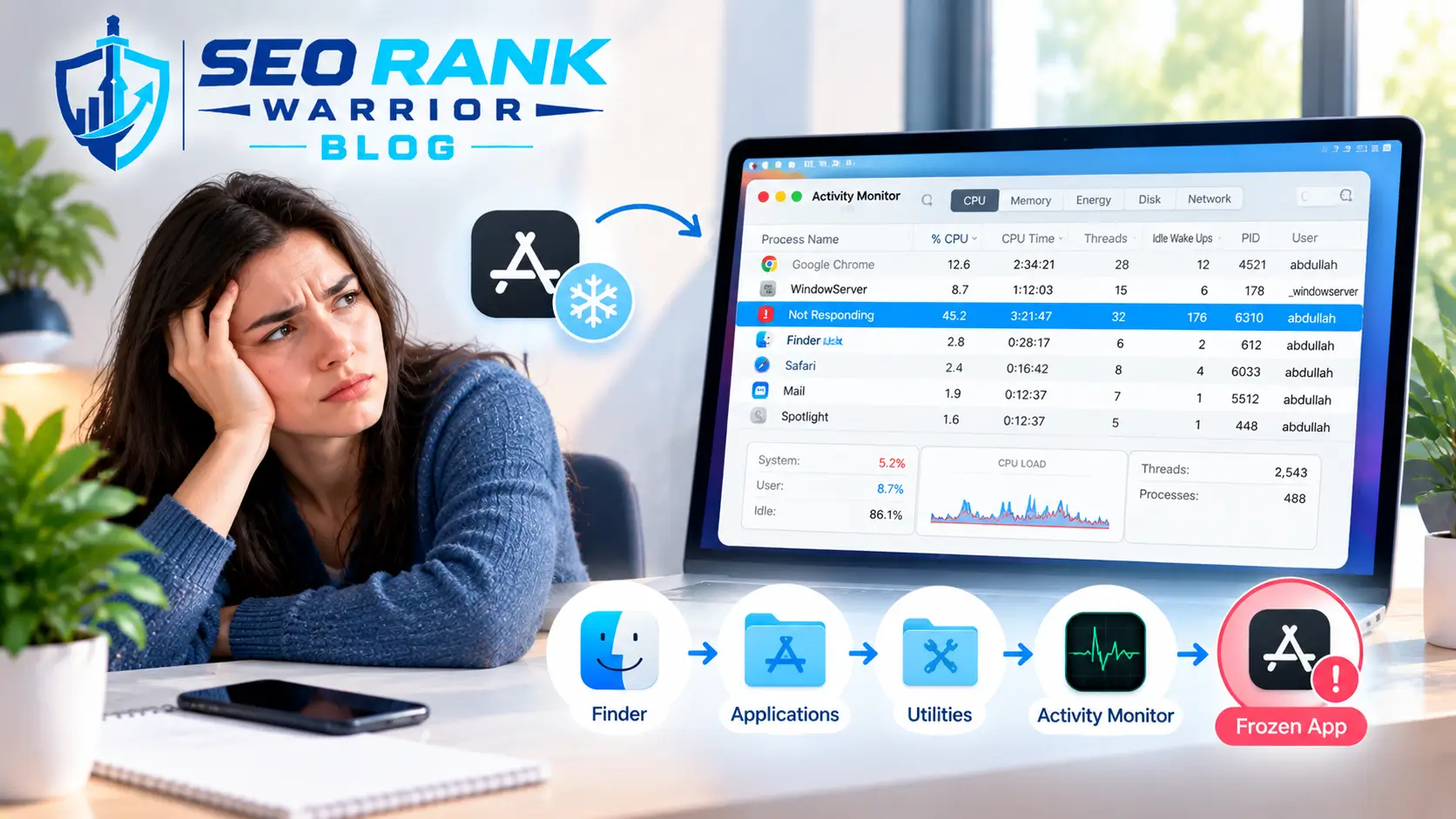
If Force Quit doesn’t show the app you’re looking for, or you want to confirm it’s actually stuck before closing it, Activity Monitor gives you more control.
- Open Activity Monitor.
- Find the app or process in the list. If you don’t see it, switch View > All Processes at the top menu, since Activity Monitor sometimes hides background processes by default.
- Select it by clicking once.
- Click the Stop button (an X in a circle) in the toolbar.
- Choose Quit to close it normally, or Force Quit if Quit doesn’t work.
Trying “Quit” before “Force Quit” gives the app a chance to close properly and save anything it can before shutting down.
Activity Monitor vs Force Quit
Here’s a quick way to decide which one you need:
- To see running processes: use Activity Monitor.
- To check CPU usage: use Activity Monitor.
- To check memory usage: use Activity Monitor.
- To investigate general system resource usage: use Activity Monitor.
- To quickly close a frozen app: use Force Quit.
Troubleshooting
Activity Monitor won’t open. Try opening it through Finder (Applications > Utilities) instead of Spotlight, in case Spotlight’s index needs a moment to catch up after a restart.
An app keeps freezing. Check whether an update is available for that app, and restart your Mac if the problem persists across multiple apps.
The Mac feels slow overall. Open Activity Monitor, sort by CPU and then by Memory, and look for a process using an unusually large share of either. Closing that one app often resolves the slowdown.
CPU or memory usage looks unusually high. This isn’t always a problem. Some background processes use more resources temporarily while indexing files or installing updates, and usage often drops back down within a few minutes. If a specific app stays high for a long time, that’s the one worth investigating first.
FAQs – How to Open Task Manager on Mac
What is the Mac equivalent of Task Manager?
There isn’t a single app with that exact name. Activity Monitor covers viewing processes and resource usage, while Force Quit covers closing an unresponsive app quickly.
How do I open Task Manager on a Mac?
Press Command + Space, type “Activity Monitor,” and press Return. That opens the closest Mac equivalent to Task Manager.
How do I see what is running on my Mac?
Open Activity Monitor and check the CPU or Memory tab. Click a column header like “% CPU” to sort the list so the heaviest process appears at the top.
How do I check CPU usage on a Mac?
Open Activity Monitor and select the CPU tab. It lists every running process along with the percentage of processing power each one is using.
How do I force quit an app on Mac?
Press Command + Option + Esc, select the unresponsive app from the list, and click Force Quit. You can also use the Apple menu or Option-right-click the app’s Dock icon.
Can I use Activity Monitor to close apps?
Yes. Select the app or process in the list, click the Stop button in the toolbar, then choose Quit or Force Quit.
Conclusion
Mac doesn’t use a tool literally called Task Manager. Activity Monitor is the built-in tool for viewing running processes and resource usage, while Force Quit is the faster option when your only goal is closing an app that has stopped responding. For most day-to-day issues, Command + Option + Esc for a quick fix and Activity Monitor for anything that needs a closer look will cover what you need.