Most of us do not miss deadlines because we are careless. We miss them because tasks are scattered: a client request in a WhatsApp voice note, a reminder on a sticky note, a promise made during a phone call. By evening, something important has quietly slipped away.
Task tracker apps solve this by keeping every to-do, deadline, and reminder in one place. This guide compares seven trusted options, explains how to choose the right one, and shows what works for students, freelancers, and small teams across Pakistan, India, and the wider region.
What Are Task Tracker Apps?
Task tracker apps are digital tools that help you capture, organize, prioritize, and follow tasks until they are finished. Most include due dates, reminders, recurring tasks, sub-tasks, labels, and a calendar view. Some, like Trello and Asana, add boards and team assignments. Others, like Google Tasks, stay deliberately simple.
A task tracker is different from a plain notes app. A notes app stores information, while a task tracker adds time and accountability. It tells you what is due, what is overdue, and what deserves your attention next. You will also see the same tools called task management apps or to-do list apps. The names overlap, but “task tracker” usually points to a stronger focus on progress and completion.
Task Tracker Apps vs. Notebooks and Spreadsheets
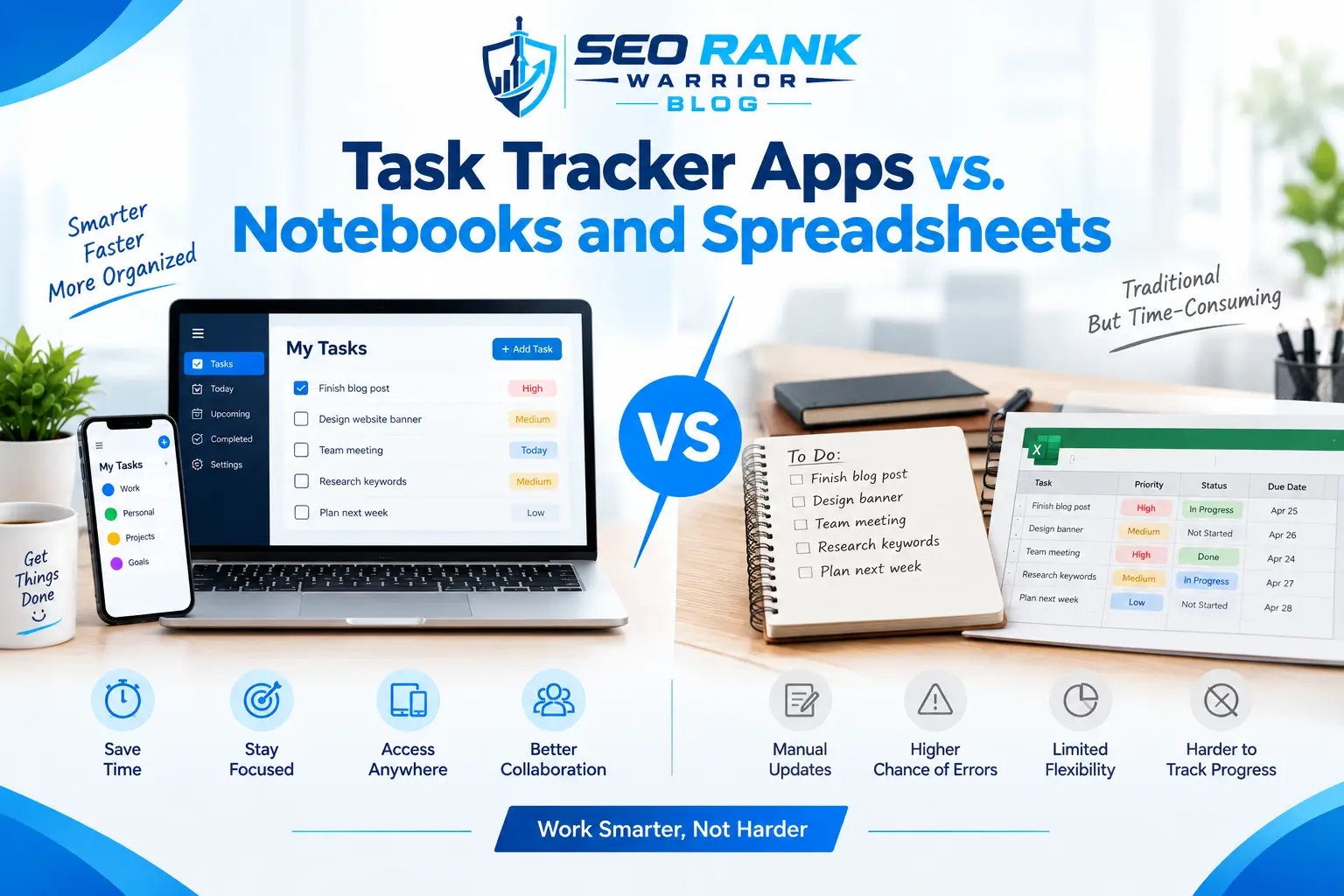
Many people start with a notebook, a spreadsheet, or the “message yourself” chat in WhatsApp. These work for a while, but they have limits. A spreadsheet cannot remind you at 9 a.m. A notebook cannot sync to your phone. A chat with yourself buries old tasks under new messages. A task tracker app adds reminders, recurring schedules, search, and sync, which is why switching usually pays off after the first busy week.
Why Task Tracker Apps Matter for Work in South Asia
Work in our region has its own pressures. Freelancers serve clients in different time zones. Students juggle university deadlines, tuition, and exam preparation. Small business owners run daily operations through WhatsApp groups, where instructions quickly disappear under forwards and memes. Power cuts and unstable mobile data make things harder, because an app that stops working offline is a poor fit. Seasonal pressure adds to this: exam season, Ramadan schedules, and quarter-end deadlines all compress time, and a visible plan helps you protect what matters.
A good tracker helps in three practical ways. Together, they turn a vague sense of being busy into a plan you can actually follow:
- It moves commitments out of chat threads into a list that does not scroll away.
- It syncs your tasks across phone and laptop, so a plan made on one device is visible on the other.
- It makes deadlines visible early, which reduces last-minute panic.
Benefits of Using a Task Tracker App
Beyond simple reminders, a consistent tracking habit changes how you work:
- Less mental load. Your brain stops acting as a storage device, which frees attention for real work.
- Better prioritization. Seeing everything together makes it easier to spot what is urgent and what can wait.
- Clearer accountability. Assigned tasks and due dates remove the awkward “I thought you were doing it” conversations.
- Visible progress. Checking items off gives a steady sense of momentum, which matters on long projects.
- Fewer missed details. Recurring tasks handle bills, invoices, and renewals without you having to remember them.
Key Features to Look For in a Task Tracker App
Before comparing names, decide which features matter for your routine. These are worth checking first:
- Fast capture: adding a task should take seconds, by typing or voice.
- Reliable reminders: time-based, recurring, and, ideally, location-based alerts.
- Offline access: essential when connectivity is unpredictable.
- Multiple views: list, board and calendar layouts for different planning styles.
- Integrations: Gmail, Google Calendar, Outlook, or Slack, so tasks connect to where work already happens.
- Fair pricing: a genuinely useful free plan matters, since dollar-based subscriptions can feel expensive in PKR or INR.
Many apps now add AI features such as automatic task suggestions, natural-language scheduling, and smart prioritization. These can save time, but they work best on top of a clear system, not as a replacement for one. Try them on a free plan before paying.
The 7 Best Task Tracker Apps
The apps below suit different working styles. None is perfect for everyone, so read the “best for” line first.
1. Todoist: Best for Everyday To-Do Lists
Todoist is where many people land when they want something clean and dependable. It understands natural language, so typing “send invoice every Friday 5 pm” creates a recurring task with a reminder. Projects, labels, and filters keep lists tidy, and apps exist for almost every device. The free plan covers the basics, but features such as calendar view and some reminders sit behind a paid plan. A freelancer can use it to set weekly billing reminders without rechecking a calendar.
2. TickTick: Best for Habits and Focus
TickTick combines a task list, calendar, habit tracker,r and Pomodoro timer in one app. That makes it useful for students preparing for exams or anyone building a steady daily routine. List, board, and calendar views cover most planning styles. The trade-off is a learning curve, since the advanced filters take time to master. In exam season, a student can pair a study timer with a daily revision checklist.
3. Microsoft To Do: Best Free Option for Office Users
Microsoft To Do is free with a Microsoft account and works on Windows, Android, iOS, S and the web. Its My Day view helps you choose what to focus on today, and flagged Outlook emails can become tasks. It lacks advanced project features, so it suits individuals better than teams. Office staff can keep personal and work lists side by side.
4. Google Tasks: Best Lightweight Tracker for Gmail Users
Most Android users already have a Google account, so Google Tasks is often a tap away. It sits inside Gmail and Google Calendar, letting you turn an email into a task and see due dates on your calendar. It is intentionally basic, with no rich labels or filters. Choose it when you want zero setup, such as a quick reminder to reply to a client message.
5. Trello: Best for Visual Workflows
Trello uses boards, lists, and cards, so you drag a task from To Do to Doing to Done. Freelance designers, writers, and social media managers often like it because client work naturally moves through stages. Checklists, due dates, and attachments live inside each card. It can feel heavy for a plain personal to-do list, but a content agency can track every article from idea to published on a single board.
6. Notion: Best for Flexible All-in-One Systems
Notion lets you build your own tracker with databases, boards, ds and calendars, and keep notes right beside your tasks. That flexibility helps students manage research and founders document processes. A university student can link assignments, lecture notes, and reading lists in one workspace. The downside is setup time, and it is easy to over-engineer. Start from a simple template instead of a blank page.
7. Asana: Best for Teams and Shared Projects
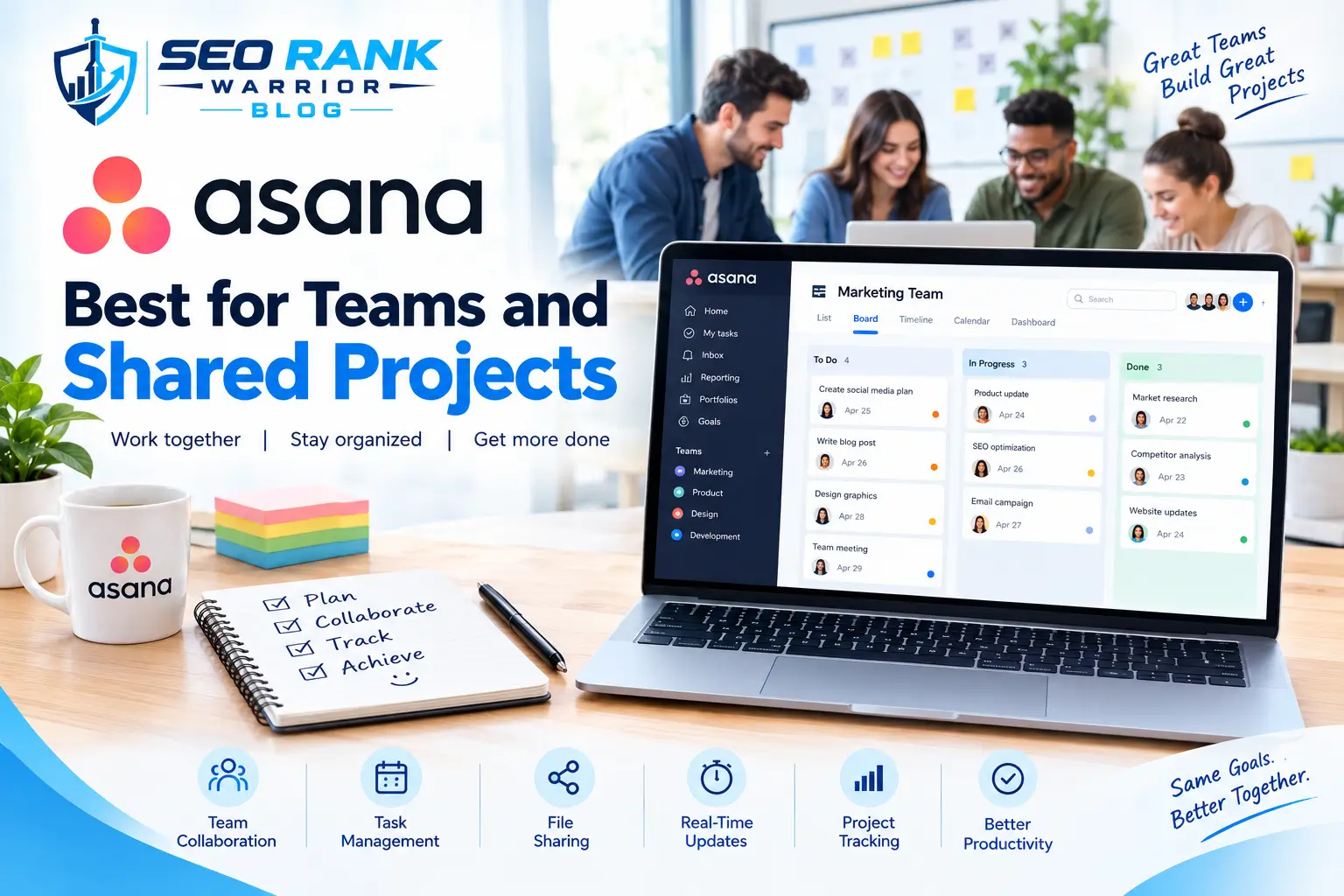
When several people share responsibility, a personal app stops being enough. Asana lets you assign tasks, set dependencies, comment in context, and view progress across projects. It suits agencies, software teams, and growing businesses, where a small marketing team can assign campaign tasks and see what is blocked. The free tier is limited, and it is usually overkill for solo use.
Businesses that also need attendance and performance tracking may look at dedicated platforms such as Task Tracker (tasktracker.in), which combines task management with attendance, timesheets,s and support for several Indian languages.
Quick Comparison of Task Tracker Apps
| App | Best For | Free Plan | Platforms |
| Todoist | Everyday to-do lists | Yes | Web, mobile, desktop |
| TickTick | Habits and focus | Yes | Web, mobile, desktop |
| Microsoft To Do | Office users | Free | Web, mobile, desktop |
| Google Tasks | Gmail users | Free | Web, mobile |
| Trello | Visual workflows | Yes | Web, mobile, desktop |
| Notion | Custom systems | Yes | Web, mobile, desktop |
| Asana | Teams | Yes | Web, mobile |
Plans and prices change often, so confirm details on each official pricing page.
How to Choose the Right Task Tracker App
Start with your situation, not the feature list.
- Students: TickTick or Microsoft To Do, for deadlines, habits, and study timers.
- Freelancers: Trello or Todoist, to track client stages and recurring work.
- Small teams and agencies: Asana or a dedicated team tool with shared projects.
- Apple-only users: Things 3 is a polished one-time purchase, though it does not run on Windows or Android.
- Beginners: Google Tasks or Microsoft To Do, because there is almost nothing to learn.
Then ask four questions. Will I work alone or with others? Do I need a calendar view? Must it work offline? What can I comfortably pay each month? If dollar pricing is a concern, check for regional pricing, annual discounts,s or a one-time purchase before committing. Try your top two choices free for a week using real tasks, not sample ones. The best task tracker is the one you open every day.
How to Get More Out of Any Task Tracker App
The app matters less than the habit. These practices work in every tool:
- Capture first, organize later. Dump everything into your inbox, then sort it once a day.
- Keep a short daily list. Choose three to five priorities. A list of thirty tasks is a wish list, not a plan.
- Use due dates honestly. Attach dates only to real deadlines; otherwise everything turns overdue, and you start ignoring alerts.
- Break big tasks down. “Prepare presentation” becomes outline, slides,s and rehearsal.
- Sync with your calendar. Seeing tasks beside meetings shows whether your day is realistic.
- Review weekly. Spend ten minutes on Friday evening or Sunday night clearing finished items and planning the week.
The most common mistakes are using too many apps at once, spending more time organizing than doing, and never reviewing the list. Fix those three and almost any tool will serve you well. If you feel overwhelmed after a few days, simplify instead of switching apps: fewer projects, fewer labels, and a shorter daily list usually solve the problem.
FAQs – Task Tracker Apps
What is the best task tracker app for beginners?
Todoist and Microsoft To Do are the easiest starting points. Both have clean interfaces, quick task entry and reminders, and both offer a free way to begin. Google Tasks is an even simpler choice if you live inside Gmail. Spend the first week only adding tasks and checking them off, and skip advanced settings.
Are there free task tracker apps?
Yes. Todoist, TickTick, Trello, Notion, and Asana all offer free plans with limits, while Microsoft To Do and Google Tasks are free to use. Watch for limits on projects, reminders, or file storage. Free plans are enough for most individuals, and you can upgrade later if you need more.
Which task tracker apps work offline?
Most major mobile apps, including Todoist, TickTick, Microsoft To Do, and Google Tasks, let you view and add tasks without a connection and sync later. Offline behavior varies by app and platform, so test it on your own device first.
What is the difference between a task tracker and project management software?
A task tracker focuses on individual to-dos and deadlines. Project management software adds timelines, dependencies, workload views, and team reporting. Individuals usually need the first, while teams running multi-step projects often need the second.
Can I use a task tracker app for teamwork?
Yes. Todoist, Trello, Asana, and Notion all support shared projects and task assignment. For larger teams, choose a tool with comments, permissions,s and progress reports rather than a simple personal list.
Conclusion
Choosing among task tracker apps is less about finding the most powerful tool and more about finding one you will actually use. Todoist suits everyday lists, TickTick supports habits, Microsoft To Do and Google Tasks keep things free and simple, Trello and Notion offer flexibility, and Asana serves teams. Pick two, test them with real work for a week, and keep the one that feels effortless. A clear list today saves a stressful scramble tomorrow.