
The best apps for note taking depend on how you actually capture and use information, not on which app has the longest feature list. Someone jotting a quick grocery list needs something completely different from someone building a linked research library or annotating PDFs by hand.
This guide compares note-taking apps across Windows, Mac, iPhone, iPad, and Android, organized by what each one is genuinely good at: simple typed notes, handwriting, PDF annotation, collaboration, linked knowledge, or free cross-platform syncing. If you specifically use an iPad with Apple Pencil, our Best iPad Note Taking Apps guide goes deeper on that use case.
Quick Comparison at a Glance
- Apple Notes: Best for Apple users who want free, built-in simplicity. Works on iPad, iPhone, Mac, Apple Watch, and via iCloud.com on the web. Fully free (5GB iCloud storage). Standout feature: deep integration across Apple devices.
- Microsoft OneNote: Best for a free, freeform canvas across platforms. Works on Windows, Mac, iPad, iPhone, Android, and web. Fully free (5GB storage). Standout feature: click anywhere on the page to add content.
- Google Keep: Best for Google Workspace users. Works on Android, iPhone, iPad, web, and Chrome. Fully free (shared Google storage). Standout feature: built into Gmail, Docs, and other Google apps.
- Notion: Best for notes tied to projects and team collaboration. Works on Windows, Mac, iPad, iPhone, Android, and web. Free tier for personal use. Standout feature: databases, tasks, and notes in one workspace.
- Obsidian: Best for long-term, linked knowledge management. Works on Windows, Mac, iPad, iPhone, and Android. Free for personal use. Standout feature: bi-directional linking between notes.
- Evernote: Best for users wanting an all-in-one note system. Works on Windows, Mac, iPad, iPhone, Android, and web. Limited free plan (50 notes, 1 device). Standout feature: long-standing search and organization tools.
- Bear: Best for distraction-free writing on Apple devices. Works on Mac, iPad, iPhone, and Apple Watch. Limited free version. Standout feature: clean Markdown writing with tag-based organization.
- Goodnotes: Best for handwritten notes with Apple Pencil. Works on iPad, iPhone, Mac, Windows, and Android. Limited free plan. Standout feature: deeply nested notebook organization.
- Notability: Best for fast handwritten capture and lecture audio. Works on iPad, iPhone, and Mac. Free plan (usage-limited). Standout feature: audio recording synced to handwritten notes.
Pricing, storage limits, and platform support change over time, so confirm current details directly with each developer before choosing.
Best Apps for Note Taking
Apple Notes
Best for: Apple users who want a free, built-in app with no setup.
Apple Notes comes preinstalled on every iPhone, iPad, and Mac, and syncs automatically through iCloud. It supports typed text, handwriting on touch devices, audio recording with live transcription, document scanning, and tagging through Smart Folders.
- Key features: Smart Folders, Quick Notes, document scanning, checklists, and Scribble-based handwriting-to-text on iPad.
- Platforms: iPad, iPhone, Mac, Apple Watch, with browser access via iCloud.com.
- Organization: Tag-based Smart Folders, simpler than dedicated organizational apps.
- Search: Includes OCR, so text inside scanned images and handwriting can be searched.
- Sync: Automatic through iCloud across Apple devices.
- Free vs paid: Fully free, sharing your general iCloud storage allowance (5GB by default, with paid tiers available for more).
- Main advantage: Zero cost, zero setup, and works well the moment you open it.
- Main limitation: Getting notes to sync smoothly with Windows or Android is difficult, and bulk export options are limited.
Microsoft OneNote
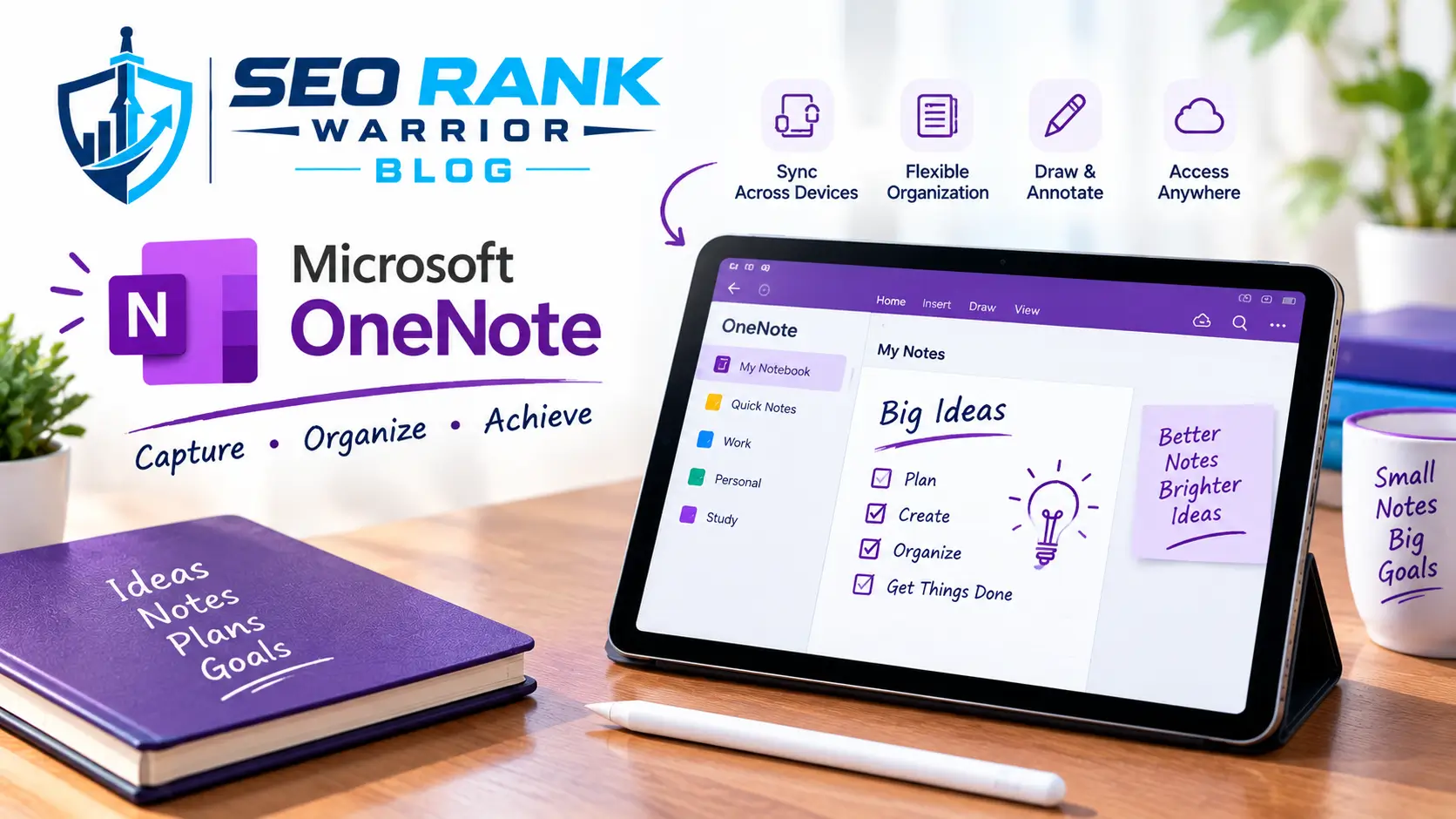
Best for: Anyone who wants a completely free, flexible canvas across nearly every platform.
OneNote organizes notes into notebooks, sections, and pages, but within a page, you can click anywhere to add text, images, audio, or ink. That freeform approach makes it well suited to long, discursive notes or diagrams.
- Key features: Freeform page layout, audio recording, a built-in web clipper, and a math assistant.
- Platforms: Windows, Mac, iPad, iPhone, Android, and web.
- Organization: Notebook > section > page hierarchy, navigated through a sidebar.
- Search: Searches typed text and, on some versions, handwriting.
- Sync: Through a Microsoft account, using OneDrive storage.
- Free vs paid: Fully free with 5GB of storage; additional storage is available starting around $1.99/month, or through a Microsoft 365 subscription.
- Main advantage: Genuinely free with no meaningful feature gate, and available on virtually every platform.
- Main limitation: The interface can feel more corporate than dedicated note apps, and free storage is capped at 5GB.
Google Keep
Best for: People who live inside Gmail, Google Docs, and the rest of Google’s ecosystem.
On its own, Google Keep is fairly basic: colored notes, checklists, and simple reminders. Its real value comes from how deeply it’s woven into other Google apps, appearing as a sidebar inside Gmail, Docs, and Drive.
- Key features: Color-coded notes, checklists, location-based reminders, and automatic audio-note transcription.
- Platforms: Android, iPhone, iPad, web, and a Chrome extension.
- Organization: Labels and colors rather than folders or notebooks.
- Search: Basic text search across notes.
- Sync: Automatic through your Google account.
- Free vs paid: Fully free, sharing storage with the rest of your Google account (15GB by default).
- Main advantage: Frictionless access to quick notes from inside the Google apps you already use daily.
- Main limitation: Too basic to serve as a primary note-taking system on its own if you need deeper organization or search.
Notion
Best for: People who want notes connected to tasks, databases, and team collaboration.
Notion organizes everything into pages built from flexible content blocks: text, checklists, images, embeds, and more. Because collaboration and databases are core to the product, it works well for shared team notes, wikis, and project tracking, not just personal notes.
- Key features: Databases, task tracking, real-time collaboration, and an AI assistant that can summarize or answer questions across your workspace.
- Platforms: Windows, Mac, iPad, iPhone, Android, and web.
- Organization: Nested pages and databases, with Teamspaces for shared work and a Private section for personal notes.
- Search: Searches across pages and databases, and AI features can synthesize answers from your notes when enabled.
- Sync: Real-time cloud sync across all platforms.
- Free vs paid: A free tier covers personal use; paid plans add features like unlimited file uploads and longer page history, and AI is typically a separate add-on.
- Main advantage: Combines notes, tasks, and structured databases in one connected workspace.
- Main limitation: Can feel like more app than most people need for simple personal note-taking, and its desktop app is less lightweight than native alternatives.
Obsidian
Best for: Researchers, writers, and anyone who wants a long-term, linked knowledge base they fully control.
Obsidian stores notes as plain Markdown files on your own device rather than in a proprietary database. Its standout feature is bi-directional linking: you can connect any note to any other note, and Obsidian builds a visual graph showing how your ideas relate.
- Key features: Bi-directional linking, a graph view, local-first Markdown storage, and a large community plugin ecosystem.
- Platforms: Windows, Mac, iPad, iPhone, and Android.
- Organization: Folders plus a link-based structure that goes beyond simple hierarchy.
- Search: Full-text search across your entire note vault.
- Sync: Free options exist through services like iCloud or Dropbox; an official paid Sync service is also available.
- Free vs paid: Free for personal use; commercial use and sync/publish add-ons involve separate costs. Licensing terms have shifted in recent years, so confirm current requirements directly with Obsidian before using it commercially.
- Main advantage: Complete data ownership in an open, portable format, plus powerful linking for anyone building a knowledge base over time.
- Main limitation: A real learning curve, and it’s easy to spend more time customizing the setup than actually taking notes.
Evernote
Best for: People who want one all-in-one note-taking system and are willing to pay for it.
Evernote helped define digital note-taking in its early years, then became notorious for aggressive pricing and a shrinking free tier. Under newer ownership, the app has been modernized with a cleaner interface, basic Markdown support, and added AI features.
- Key features: Web clipper, searchable text inside images and PDFs, a built-in calendar, and AI-assisted summaries.
- Platforms: Windows, Mac, iPad, iPhone, Android, and web.
- Organization: Notebooks and tags, with search that includes OCR for scanned content.
- Search: Strong, including text recognition inside images and attached PDFs.
- Sync: Cloud-based, across all supported platforms.
- Free vs paid: The free plan is quite limited (around 50 notes and a single device); paid plans lift those caps but are priced higher than most competitors.
- Main advantage: Mature search and organization tools built up over more than a decade.
- Main limitation: The free tier is too restrictive for regular use, and paid plans cost noticeably more than alternatives offering similar core functionality.
Bear
Best for: Writers who want a clean, distraction-free environment on Apple devices.
Bear focuses on making writing feel pleasant: a minimal interface, attractive typography, and Markdown formatting that stays hidden behind a clean editor rather than showing raw syntax. Organization happens through tags rather than folders.
- Key features: Tag-based organization that auto-builds a nested sidebar structure, multiple themes, and note encryption on paid plans.
- Platforms: Mac, iPad, iPhone, and Apple Watch, with a web version available in limited form.
- Organization: Hashtag-based tags rather than manual folders.
- Search: Standard text search, with some users reporting search feels less robust on iPhone specifically.
- Sync: iCloud sync is a paid-plan feature.
- Free vs paid: The free version has no sync and limited themes; a paid subscription unlocks iCloud sync, more themes, and full export options.
- Main advantage: One of the more genuinely enjoyable writing experiences among note apps, with real attention to design.
- Main limitation: Apple-only, with no native Windows or Android app, which rules it out if you regularly work across platforms.
Goodnotes
Best for: Handwritten notes, especially with Apple Pencil on iPad.
Goodnotes is built around handwriting and PDF annotation rather than typed text. It handles imported PDFs and slides well, supports deeply nested folders for organization, and includes handwriting recognition that makes scribbled notes searchable.
- Key features: Handwriting recognition, an infinite Whiteboard canvas, and deep notebook/folder nesting.
- Platforms: iPad, iPhone, Mac, Windows, and Android, though full cross-platform sync may require separate subscriptions.
- Organization: Notebooks with deeply nested folders.
- Search: Handwriting-to-text search, though the conversion itself can feel slower than typing.
- Sync: Available across supported platforms, with some limitations between Apple and non-Apple devices.
- Free vs paid: A limited free plan exists; paid access is available through annual tiers or, for the base app, a one-time purchase.
- Main advantage: Strong, consistent handwriting and PDF performance with deep organizational options.
- Main limitation: Less useful if your primary device is a keyboard-first laptop rather than a touchscreen with a stylus.
Notability
Best for: Fast handwritten note capture, especially for lectures and meetings you want to record.
Notability opens a new note almost instantly and syncs audio recordings to your handwriting in real time, so tapping a point in your notes can jump to the exact moment it was recorded.
- Key features: Real-time audio-to-note syncing, fast note creation, and handwriting recognition for search.
- Platforms: iPad, iPhone, and Mac, with no native Windows or Android app.
- Organization: A simpler folder structure than apps like GoodNotes.
- Search: Handwriting recognition supports searching written notes.
- Sync: Through Notability’s own cloud service rather than iCloud.
- Free vs paid: A free plan exists with usage limits; paid tiers are billed monthly or annually.
- Main advantage: Unmatched speed for capturing handwritten notes, plus genuinely useful audio-linked recording.
- Main limitation: No Windows or Android support at all, which is a hard limit for cross-platform users.
Best Note-Taking Apps by Use Case
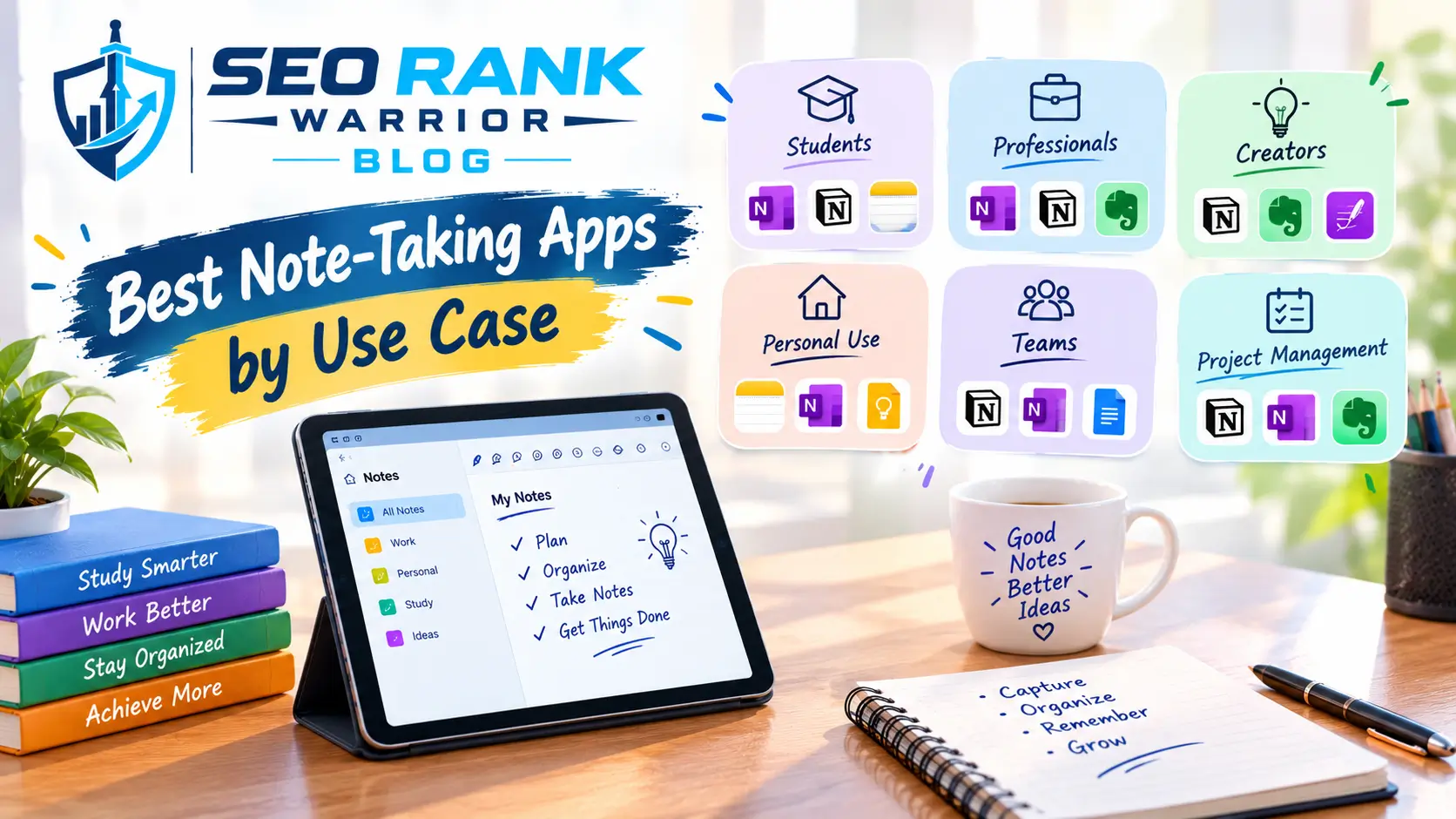
- Best for simple notes: Apple Notes or Google Keep, since both open instantly and require no setup for quick, casual capture.
- Best free note-taking app: Apple Notes and Microsoft OneNote are both fully free with no meaningful feature gate, though OneNote’s storage cap is smaller.
- Best for students: GoodNotes or Notability for handwritten lecture notes, or OneNote for a free option that handles typed notes, diagrams, and PDFs together.
- Best for handwritten notes: GoodNotes and Notability, both built specifically around Apple Pencil handwriting and PDF markup.
- Best for work and meetings: Notion for teams that already use it for projects, or OneNote for meeting notes that mix typing, diagrams, and attachments.
- Best for organized/structured notes: Notion, for databases and structured pages, or Bear, for simple tag-based organization with a cleaner writing experience.
- Best for researchers and linked knowledge: Obsidian, whose bi-directional linking and graph view are built specifically for connecting ideas over time.
- Best cross-platform option: Microsoft OneNote and Notion both run natively on Windows, Mac, iOS, and Android with reliable sync.
- Best for Apple users: Apple Notes for free simplicity, or Bear if you want a more writing-focused experience and don’t mind paying.
- Best for Microsoft users: Microsoft OneNote, which integrates naturally with a Microsoft 365 account and other Microsoft apps.
Best Free Apps for Note Taking
Apple Notes, Microsoft OneNote, and Google Keep are the three genuinely free options here, with no subscription required for their core features. Each shares storage with a broader account: Apple Notes and OneNote both include around 5GB free before you’d need to pay for more space, while Google Keep shares your general Google account storage.
Notion and Obsidian both offer free tiers that cover personal use fully, with paid plans aimed at teams, advanced collaboration, or optional sync services rather than gating basic note-taking. Evernote’s free plan, by contrast, is limited enough (a small note cap and a single device) that it’s rarely enough for regular use, and most people who try Evernote end up needing a paid plan quickly.
A free plan is usually enough if your notes are mostly text, checklists, and the occasional image, and you don’t need advanced search, deep organization, or heavy collaboration. It’s worth upgrading once you consistently hit a specific limitation, such as running out of free storage, needing real-time collaboration, or wanting handwriting and PDF tools that free plans don’t offer.
Note-Taking Apps for Students
Students should weigh a note-taking app against how they actually study, not just its overall reputation. The features worth prioritizing include:
- Fast note capture, since a slow app costs valuable time during a live lecture.
- Search, so you can find a specific topic across a semester’s worth of notes.
- Organization by subject or course, whether through folders, notebooks, or tags.
- Handwriting support, if you take notes by hand or annotate diagrams.
- PDF annotation, for marking up slides, readings, and handouts.
- Audio recording, particularly for lecture-heavy courses.
- Cross-device syncing, so notes taken on a phone or tablet are available later on a laptop.
- Offline access, since campus Wi-Fi isn’t always reliable.
- Sharing, for group projects or comparing notes with classmates.
Based on documented features, GoodNotes and Notability fit handwriting-heavy note-taking well, while OneNote offers a fully free option that handles typed notes, diagrams, and PDFs in one freeform canvas. Apple Notes remains a reasonable default for students who want something simple and already own an Apple device.
Note-Taking Apps for Work
Professionals generally care about a different set of priorities than students:
- Meeting notes that are quick to create and easy to share afterward.
- Collaboration, so colleagues can view or edit the same notes.
- Search, especially across a large volume of accumulated notes.
- Organization that scales past a handful of documents.
- Task integration, connecting notes to action items rather than leaving them isolated.
- Document sharing, including exporting notes into formats colleagues can open.
- Cross-platform access, since teams rarely use identical devices.
- Security and privacy, particularly for anything involving client or company information.
Notion is a strong fit for teams already using it for project management, since notes, tasks, and documentation live in the same connected system. OneNote suits organizations already using Microsoft 365, given its native integration with that ecosystem. For individuals who mainly need fast, private capture without a team layer, Apple Notes or Bear can be entirely sufficient.
Handwritten vs Typed Note-Taking Apps
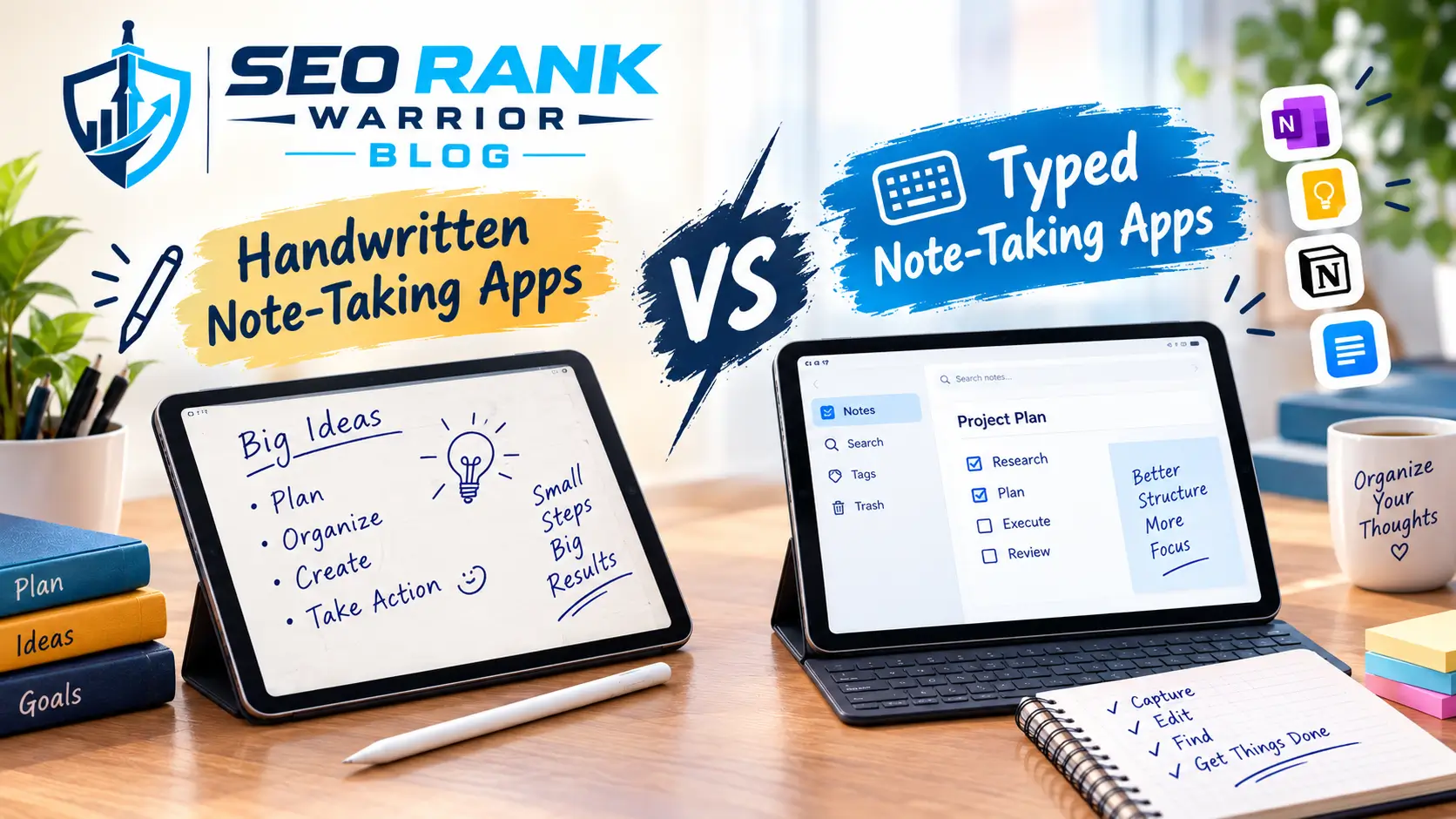
Note-taking apps generally lean toward one of two core workflows, though some support both.
Typed notes are built around:
- Structured text and formatting.
- Fast, reliable search across large volumes of notes.
- Documents and long-form writing.
- Databases and structured organization (in apps like Notion).
- Real-time collaboration with other people.
Handwritten notes are built around:
- Stylus support with pressure sensitivity.
- A “digital paper” feel that mimics writing by hand.
- Drawing and sketching tools.
- PDF annotation for marking up existing documents.
- Handwriting recognition that converts ink to searchable text.
Apple Notes and OneNote support both reasonably well, letting you mix typed text and handwriting on the same page, particularly on touchscreen devices. Apps like Goodnotes and Notability, by contrast, are built specifically around handwriting and PDFs as their primary workflow, while Notion, Obsidian, and Bear are built primarily for typed text and offer little or no native handwriting support.
How to Choose the Best Note-Taking App
1. Your Device and Operating System
Confirm the app actually runs well on every device you use daily. An app that’s excellent on iPad but has a neglected Mac or Windows version, or no Android app at all, will frustrate you the moment you switch devices.
2. Typed vs Handwritten Notes
Decide honestly whether most of your notes are typed or handwritten. Choosing an app built for the opposite workflow means fighting the app rather than working with it.
3. Organization
Think about how you naturally browse for old information: folders, tags, or linked notes. The best organizational system is the one that matches how you already think, not the one with the most options.
4. Search
If you accumulate a large volume of notes over time, strong search, including inside images, PDFs, or handwriting, becomes essential rather than optional.
5. Sync and Cross-Platform Support
If you switch between a phone, tablet, and computer, or between Apple and non-Apple devices, verify sync actually works reliably across all of them before committing.
6. PDF and Document Support
If you regularly mark up readings, contracts, or slides, check specifically how well an app handles imported PDFs, since this varies significantly between apps.
7. Collaboration
Most personal note apps aren’t built for real-time shared editing. If you need that, it will meaningfully narrow your realistic options to apps like Notion.
8. Privacy and Data Ownership
Consider where your notes are stored and how easily you could get them out if you ever switched apps. Locally stored, open-format notes (like Obsidian’s Markdown files) are generally easier to migrate than notes locked in a proprietary format.
9. Offline Access
Check whether you can create and read notes without an internet connection, and whether changes sync automatically once you’re back online.
10. Pricing
Free plans often come with real restrictions, such as storage caps or a single-device limit. Weigh whether a paid plan’s specific extra features are ones you’ll actually use, rather than paying for a longer feature list you won’t touch.
Free vs Paid Note-Taking Apps
Free plans across these apps range from genuinely complete (Apple Notes, OneNote, Google Keep) to intentionally limited as a way to encourage upgrading (Evernote, Bear, Goodnotes, Notability). Subscription pricing is the most common paid model, though Goodnotes and some other apps also offer a one-time purchase option for their base functionality.
Before paying for any note-taking app, it helps to check a few things: whether the free plan’s storage or device limits actually affect your usage, whether a subscription unlocks something you’ll use regularly (like audio-synced notes or real-time collaboration) rather than something that just sounds nice, and whether you can export your notes in a usable format if you decide to cancel later. Because pricing and plan structures shift over time, treat any specific number in this article as a starting point to verify, not a permanent fact.
Best Apps for Note Taking vs Productivity Tools
Note-taking apps range from standalone tools focused purely on capturing text and ink, to broader systems that fold notes into tasks, calendars, databases, and team collaboration. Apple Notes, Bear, and Goodnotes sit closer to the standalone end, while Notion blends notes directly into project and task management.
If you’re building out a broader system rather than choosing a single app, it helps to understand how note-taking fits alongside other categories of software. Our productivity tools guide covers that wider landscape, including task managers, calendars, and automation tools that often work alongside whichever note-taking app you choose.
FAQs – Best Apps for Note Taking
What is the best app for note taking?
There isn’t one universal answer. Apple Notes and Microsoft OneNote are strong free, general-purpose choices; Obsidian suits long-term linked research; Notion suits notes tied to team projects; and Goodnotes or Notability suit handwritten notes on a tablet.
What is the best free app for note taking?
Apple Notes, Microsoft OneNote, and Google Keep are all fully free with no subscription required for core features. Apple Notes and OneNote both include free storage that’s enough for most typical use, while Keep shares storage with your broader Google account.
Which note-taking app is best for students?
It depends on how you study. Goodnotes and Notability suit handwritten lecture notes well, while Microsoft OneNote offers a free option that handles typed notes, diagrams, and PDFs together.
Which app is best for handwritten notes?
Goodnotes and Notability are both built specifically around handwriting and Apple Pencil support, with strong PDF annotation tools alongside.
What is the best cross-platform note-taking app?
Microsoft OneNote and Notion both run natively on Windows, Mac, iOS, and Android with reliable syncing, making them solid choices if you regularly switch between different types of devices.
Are paid note-taking apps worth it?
It depends on whether the paid features solve a real problem you have. If you need audio-synced lecture notes, real-time team collaboration, or handwriting tools that a free plan doesn’t offer, a subscription can be worth it. If your needs are simple text notes and light organization, a free app is often genuinely enough.
Can note-taking apps replace paper notebooks?
For most people, yes. Digital note-taking apps add search, backup, and easy organization that paper can’t offer, and apps like Goodnotes or Notability specifically aim to replicate the handwriting experience on a tablet. Some people still prefer paper for certain tasks, like brainstorming, but that’s a personal preference rather than a functional limitation of the apps themselves.
Conclusion
The right note-taking app depends on your device, your workflow, whether you prefer typing or handwriting, how you like to organize information, and what you’re willing to pay. Rather than choosing based on which app has the longest feature list, match your choice to the features you’ll actually use day to day, and start with a free option before assuming you need to pay for more.