
Finding the best calendar app depends on much more than how an app displays dates. A good calendar can help you organize meetings, manage personal commitments, share schedules with family, plan focused work, and keep track of appointments without creating unnecessary complexity.
Some people need a simple free calendar for everyday events, while others need a powerful schedule app that connects meetings, tasks, reminders, and multiple calendars. Businesses may prioritize Microsoft or Google integrations, while families may need a best family calendar app that everyone can access.
This guide compares popular calendar options in 2026 and explains which type of user each one suits. It also looks at calendar sharing, daily planning, scheduling features, integrations, privacy, and the difference between a traditional calendar and a more advanced productivity-focused tool.
Quick Look at the Top Calendar Apps
| Calendar App | Best For | Key Strength | Free Option |
| Google Calendar | General scheduling | Google ecosystem and sharing | Yes |
| Microsoft Outlook Calendar | Business users | Email, meetings, and Microsoft 365 | Yes |
| Apple Calendar | Apple users | Native Apple integration | Yes |
| Notion Calendar | Notion users | Projects and calendar together | Yes |
| Fantastical | Advanced calendar users | Powerful calendar features | Limited |
| Motion | Automated planning | AI scheduling and time blocking | Trial/Paid |
| Reclaim | Flexible schedules | Smart time management | Free/Paid |
| Calendar.com | Client scheduling | Booking and availability | Yes |
Pricing, features, platform support, and plan limits can change, so check the provider’s current information before purchasing a paid plan.
Google Calendar: A Flexible Choice for Everyday Scheduling
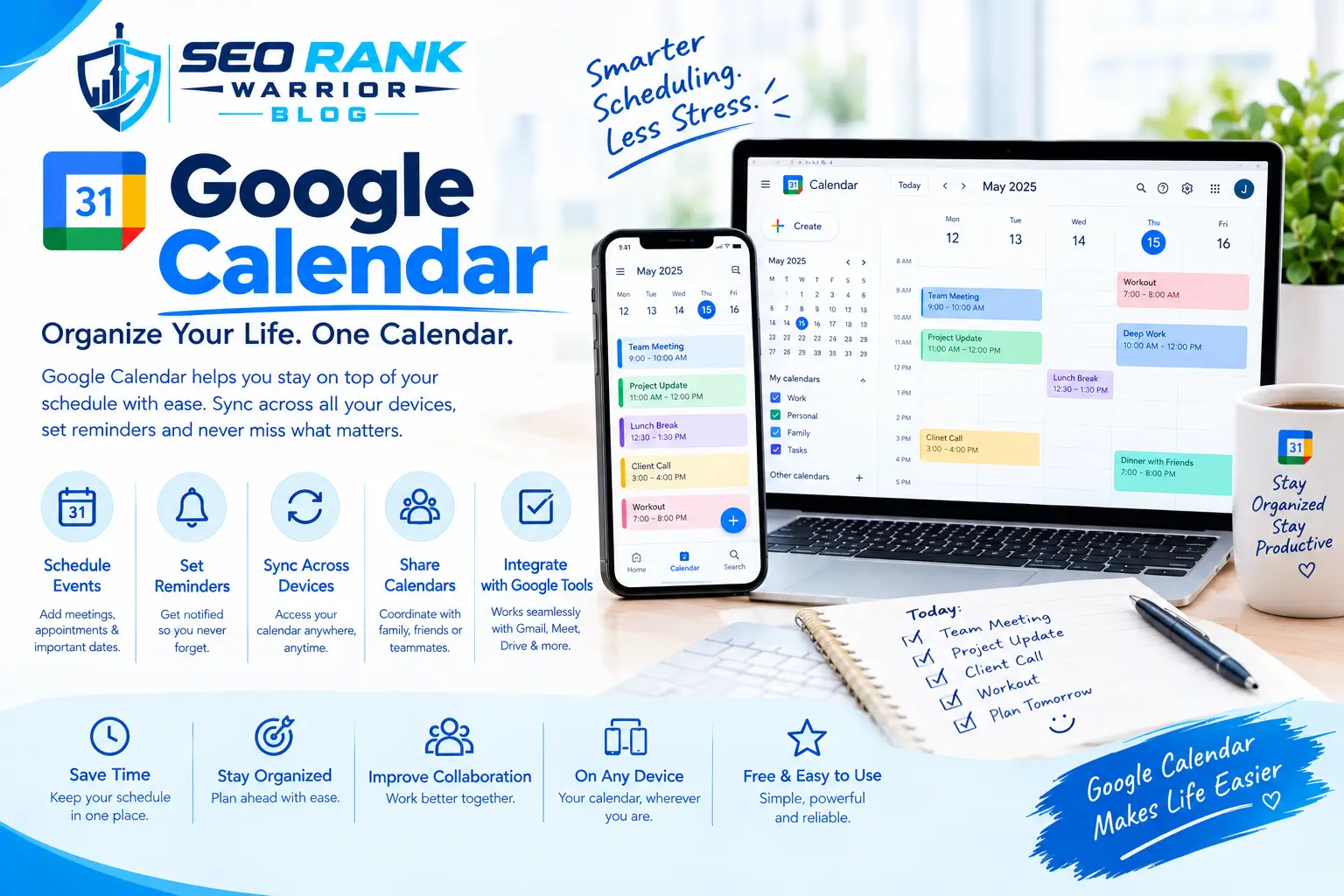
Google Calendar remains a practical option for people who want an accessible calendar connected to other Google services.
You can create personal events, recurring appointments, meetings, reminders, and shared calendars. Its integration with Gmail and Google Meet can also make scheduling easier when most of your work already happens inside Google Workspace.
For someone looking for a free calendar with strong sharing features, Google Calendar can cover many everyday requirements without requiring another productivity subscription.
It can also work well as a basic calendar planner because you can create separate calendars for work, personal commitments, holidays, projects, and other areas of your life.
Best suited to:
- Personal and professional scheduling
- Google Workspace users
- Shared calendars
- Recurring events
- People who want a free solution
Microsoft Outlook Calendar: Built for Workflows
Microsoft Outlook Calendar is particularly useful when email, meetings, and scheduling are already managed through Microsoft 365.
Instead of maintaining a separate calendar application, users can manage appointments alongside Outlook email and Microsoft Teams meetings. This makes it a practical option for workplaces where Microsoft services are already part of the daily workflow.
For example, if you regularly need to schedule a Teams meeting, Outlook provides a direct way to create and manage those meetings from the same environment.
It is also useful when you need to schedule a meeting in Outlook, manage invitations, check availability, and coordinate with colleagues.
Best suited to:
- Microsoft 365 users
- Business teams
- Outlook email users
- Teams meetings
- Workplace scheduling
Apple Calendar: Simple Scheduling for Apple Users
Apple Calendar is designed around the Apple ecosystem, making it a convenient option for people who primarily use iPhone, iPad, Mac, and Apple Watch.
It can handle everyday appointments, recurring events, reminders, shared calendars, and personal scheduling without requiring another application.
For users who simply want to see their schedule and keep appointments synchronized between Apple devices, its simplicity can be a major advantage.
Best suited to:
- iPhone users
- Mac users
- Personal scheduling
- iCloud users
- Apple households
The main limitation is that people looking for advanced productivity automation may eventually need a more specialized tool.
Notion Calendar: Connecting Planning With Projects
Notion Calendar takes a different approach from a traditional calendar.
Instead of keeping your calendar completely separate from your work information, it can connect scheduling with Notion pages, databases, and projects.
This can be useful for content creators, marketers, students, freelancers, and teams that already use Notion for project organization.
For example, a content creator could use a calendar planner to see publishing dates alongside project information stored in Notion.
Best suited to:
- Notion users
- Project planning
- Content calendars
- Database-driven workflows
- People who want scheduling and project information connected
Fantastical: For People Who Want More Control
Fantastical is designed for users who want more advanced calendar functionality than a basic scheduling application provides.
Its features are geared toward people who manage multiple calendars, create events frequently, and want a more sophisticated way to interact with their schedule.
This can make it attractive to professionals who treat their calendar as an important part of their daily planning system.
Best suited to:
- Multiple calendars
- Advanced scheduling
- Professional users
- People who want richer calendar controls
Some advanced functionality requires a paid plan, so users should compare the available features before subscribing.
Motion: When Your Calendar Needs to Manage Tasks
Motion is different from a conventional calendar because it combines scheduling with task management.
Instead of simply showing a space on your calendar, it can help determine when certain tasks should be completed. This makes it relevant to people who have more work than they can easily organize manually.
For example, rather than writing “finish client report” on a task list and hoping to find time later, an automated planning system can assign time for that work around existing commitments.
This makes Motion closer to an AI productivity planner than a traditional calendar.
Best suited to:
- Time blocking
- Task scheduling
- Busy professionals
- Automated planning
- People managing multiple deadlines
Reclaim: Protecting Time for Priorities
Reclaim focuses on flexible scheduling and protecting time for tasks, habits, and priorities.
This approach can be useful when your schedule changes frequently. Instead of manually moving every flexible task whenever a meeting changes, smart scheduling can help adjust planned activities around your existing commitments.
For people comparing the best apps for daily planning, this type of automation may be more useful than simply adding another calendar view.
Best suited to:
- Flexible work schedules
- Recurring tasks
- Focus time
- Habit scheduling
- People with frequently changing calendars
Calendar.com: Useful for Client Scheduling
Calendar.com focuses more heavily on scheduling and appointment management.
This makes it relevant to freelancers, consultants, coaches, agencies, and service businesses that regularly need clients or colleagues to book available time.
Instead of sending several messages asking, “What time works for you?”, a scheduling system can show available slots and allow someone to select a suitable appointment.
For professional users, this can make a scheduling app more valuable than a basic personal calendar.
Best suited to:
- Freelancers
- Consultants
- Client appointments
- Booking links
- Professional scheduling
Which Calendar App Is Best for Daily Planning?
There is an important difference between calendar management and daily planning.
A calendar tells you when something happens. Daily planning is about deciding what deserves your time and when you will actually work on it.
For simple daily planning, Google Calendar or Apple Calendar may be enough. You can block time for work, appointments, exercise, study, or personal activities.
If you want the application to automatically arrange tasks around your meetings, an AI-focused tool such as Motion or Reclaim may be more appropriate.
The right choice therefore depends on whether you want a calendar that shows your schedule or a system that actively helps build your schedule.
Best Shared Calendar App for Families and Teams
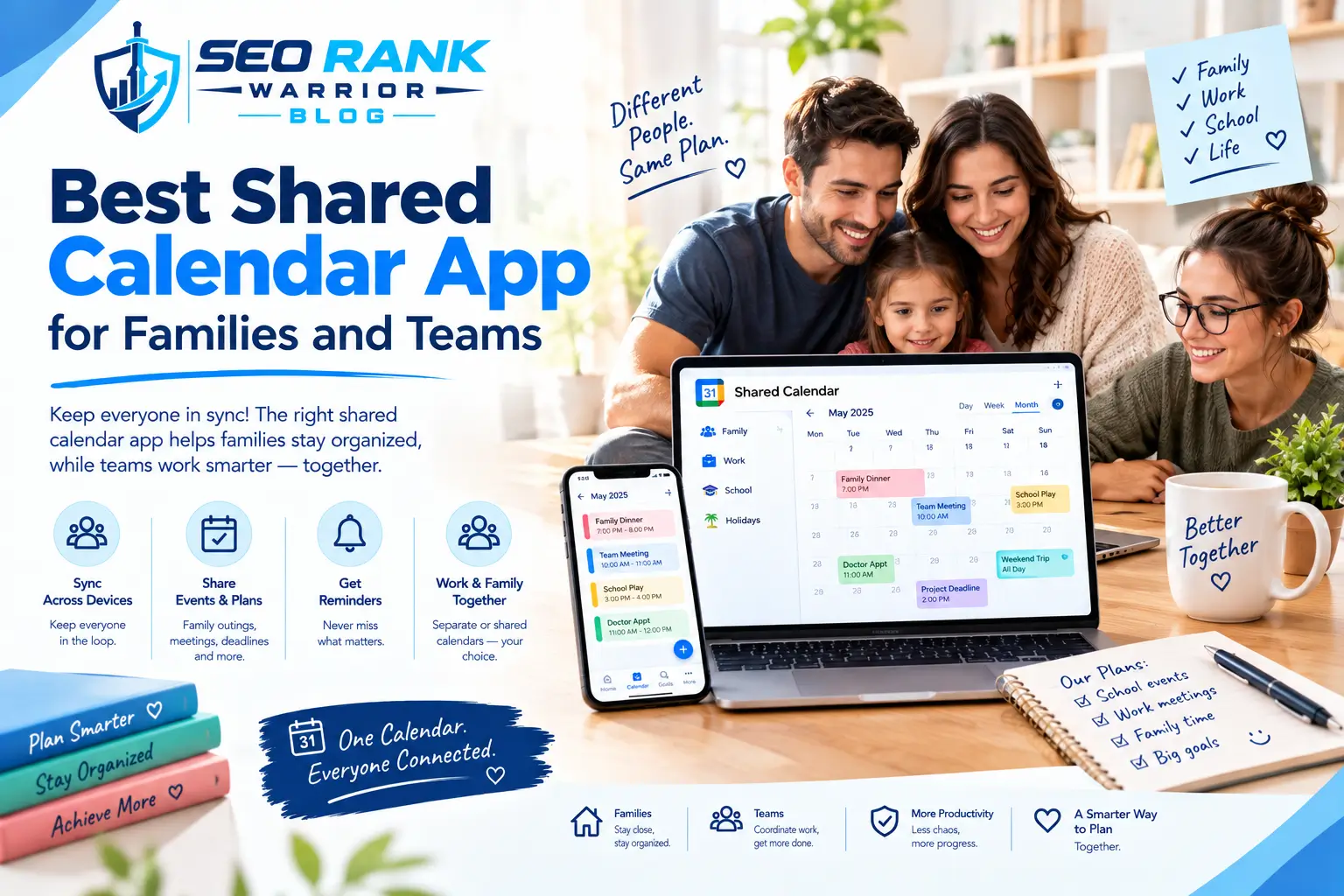
Sharing becomes important when more than one person needs access to the same schedule.
A best shared calendar app should make it easy to:
- Invite other people
- Create shared events
- Control calendar permissions
- See availability
- Manage recurring events
- Keep personal and shared schedules separate
Google Calendar can work well for families and teams already using Google accounts. Apple Calendar is convenient for households heavily invested in Apple devices.
For workplaces, Outlook can be more suitable when the organization already uses Microsoft 365.
The most important factor is not simply whether an app supports sharing. Check how sharing works within the ecosystem your family, clients, or team already uses.
Best Family Calendar App: What Should You Look For?
A best family calendar app should reduce coordination rather than create another system everyone has to learn.
Useful features include:
Shared Events
Everyone should be able to see important family commitments such as appointments, school events, travel, or activities.
Recurring Schedules
Recurring activities such as classes, sports practices, or weekly appointments should be easy to add.
Multiple Calendars
Separate calendars can help distinguish school, work, personal, and family events.
Mobile Access
Family members should be able to check the schedule from their phones without needing a computer.
Notifications
Reminders can help prevent missed appointments, but they should be configurable so users do not receive unnecessary alerts.
Free Calendar Apps vs Paid Options
A paid calendar is not automatically better than a free calendar.
Google Calendar and Apple Calendar can handle many everyday scheduling needs without requiring a dedicated subscription. Outlook also provides substantial calendar functionality for personal users.
Paid tools become more relevant when you need features such as:
- AI scheduling
- Automatic time blocking
- Client booking
- Advanced productivity workflows
- Additional integrations
- Specialized calendar views
- Team-oriented scheduling
Before paying, identify the exact problem you are trying to solve.
If you only need to remember appointments and meetings, a free calendar may be enough. If your bigger problem is fitting dozens of tasks into a changing schedule, an automated scheduling tool may provide more value.
Calendar Planner vs Traditional Calendar
A calendar planner is often more focused on using your available time intentionally rather than simply recording events.
For example:
Traditional calendar
2:00 PM — Client meeting
Productivity-focused planning
9:00 AM — Research
10:30 AM — Client meeting
12:00 PM — Lunch
1:00 PM — Project work
3:00 PM — Email and follow-up
The second approach treats the calendar as a planning tool.
However, you do not need to schedule every minute of your day. Leaving some flexibility is important because unexpected tasks, communication, and personal responsibilities can change your plans.
Features That Matter in a Calendar App
Multiple Calendar Support
If you manage work, personal, family, or business commitments separately, multiple-calendar support can make your schedule easier to understand.
Sharing
Look for appropriate viewing and editing permissions if other people need access.
Recurring Events
Recurring appointments can save considerable time when you have regular commitments.
Scheduling Links
These are particularly useful for professionals who frequently arrange calls or appointments with clients.
Time-Zone Management
Time-zone support matters when working with international clients, remote teams, or while traveling.
Notifications
Choose reminder settings that help you stay informed without creating unnecessary interruptions.
Integrations
Consider whether the calendar works with the tools you already use, such as email, video conferencing, task management, or project management software.
Cross-Platform Access
If you regularly switch between a phone, tablet, and computer, check that your calendar syncs reliably across those devices.
How to Choose the Best Calendar App for You
Rather than choosing based only on a list of features, start with your actual routine.
If you need simple personal scheduling:
A free calendar such as Google Calendar or Apple Calendar may be sufficient.
If you work in Microsoft 365:
Outlook Calendar can keep email, meetings, and scheduling within the same environment.
If your projects live in Notion:
Notion Calendar may provide a more connected workflow.
If you manage many tasks:
Consider an AI scheduling tool that can combine tasks and calendar events.
If clients regularly book your time:
Look for scheduling links and appointment management.
If you coordinate with family:
Prioritize shared calendars, simple access, recurring events, and mobile support.
The best choice is ultimately the application that solves your scheduling problem without introducing unnecessary complexity.
Common Calendar Mistakes to Avoid
Even a powerful calendar cannot fix a poorly designed scheduling system.
One common mistake is maintaining several calendars without properly synchronizing them. This can lead to double bookings and missed commitments.
Another is turning every tiny task into a calendar event. Your calendar can become overwhelming if every five-minute activity receives its own time block.
It is also easy to create an unrealistic schedule. Leaving no space between meetings, tasks, and personal responsibilities can make the entire system difficult to follow.
Finally, do not choose an application simply because it has more features. A simple tool that you consistently use can be more useful than a complicated platform you rarely open.
FAQs – Best Calendar App
What is the best calendar app?
The best calendar app depends on your workflow. Google Calendar is useful for general scheduling and sharing, Outlook fits Microsoft users, Apple Calendar works naturally within Apple’s ecosystem, and specialized tools offer more advanced planning or automation.
What is the best free calendar app?
Google Calendar and Apple Calendar are strong free options for everyday scheduling. Your choice will largely depend on which devices and services you already use.
What is the best shared calendar app?
Google Calendar and Apple Calendar both support shared-calendar workflows, while Outlook is particularly relevant for workplace teams using Microsoft 365. The right option depends on the accounts and devices your group already uses.
What is the best family calendar app?
A useful family calendar should provide sharing, recurring events, notifications, multiple calendars, and easy mobile access. Google Calendar and Apple Calendar can both support these requirements.
Is a calendar app a productivity tool?
Yes. A calendar can become a productivity tool when you use it to allocate time for important work, manage priorities, protect focus periods, and coordinate commitments.
Are AI calendar apps worth using?
AI calendar tools can be useful for people who have many flexible tasks and frequently changing schedules. They are less necessary if your calendar mainly contains fixed appointments and occasional meetings.
Conclusion
The best calendar app is not necessarily the one with the most features. It is the one that fits the way you already manage your time.
For straightforward scheduling, Google Calendar and Apple Calendar can provide a simple starting point. Microsoft users may benefit from Outlook, while Notion users can connect scheduling with project information. People who need automated planning can explore tools built around AI scheduling, while freelancers and service providers may benefit more from booking-focused platforms.