A task manager is a tool used to create, organise, prioritise, track, and complete tasks. So what is a task manager in practice? It depends on context. Most often the phrase means a productivity app that keeps your to-dos, deadlines, and progress in one place. On some computers, though, it refers to a built-in system utility that shows running applications and processes.
This guide focuses on the first meaning while briefly clearing up the second. You will learn what a task manager does, the main types, how it works, and how to choose one that fits your workload.
What Is a Task Manager?
A task manager is a tool that helps you record tasks, set priorities and deadlines, and follow progress until the work is finished. It can be a simple app on your phone, a shared board for a team, or a feature inside a larger work platform.
People use one because memory and scattered notes stop working once tasks arrive from email, meetings, and chat. A single trusted list keeps things from slipping. Task managers are common in offices, schools, freelance work, software teams, and households.
What Does a Task Manager Do?
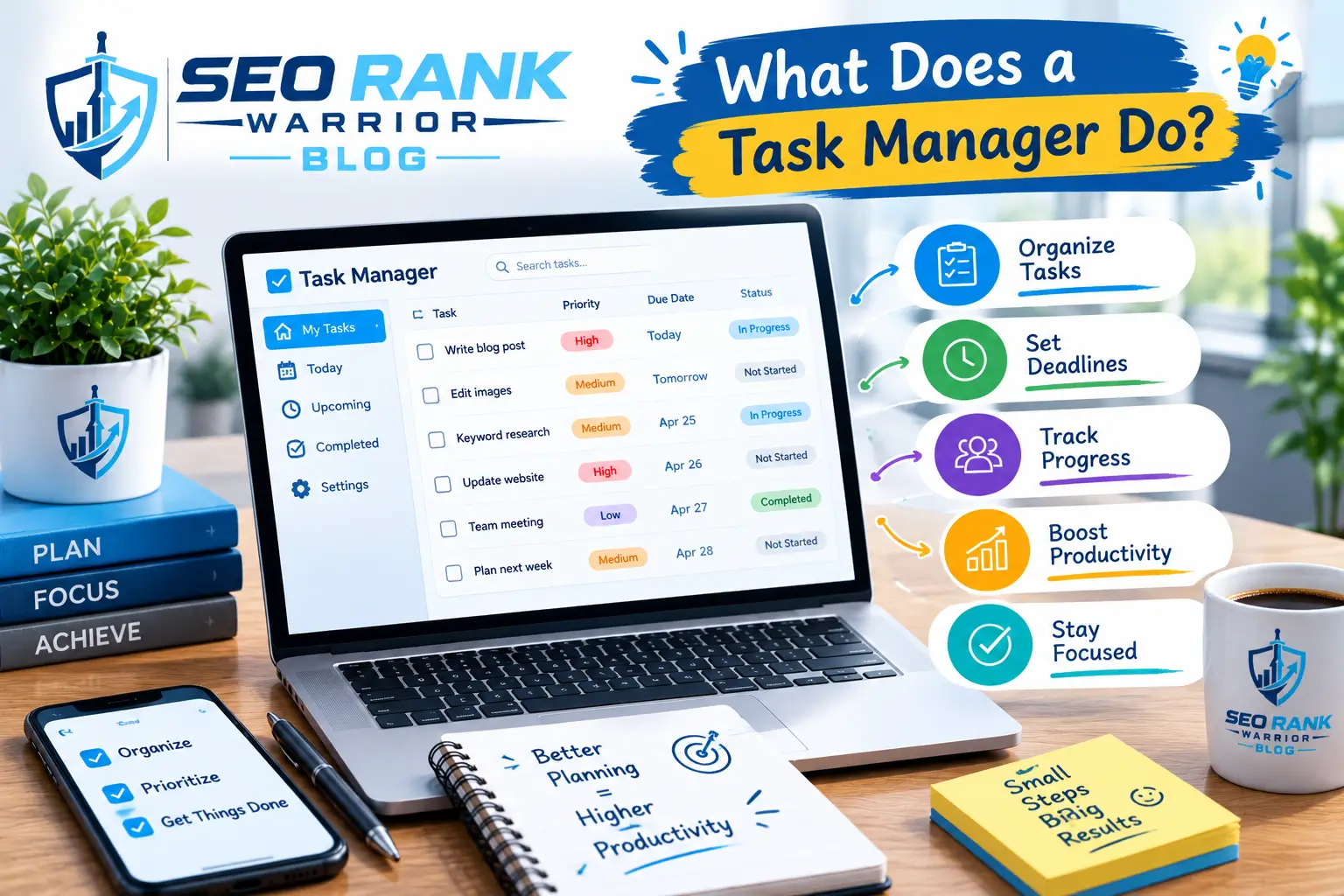
At its core, a task manager turns vague obligations into defined items. You create a task, add notes or attachments for context, and give it a due date. Priorities show what needs attention first, while reminders nudge you before a deadline passes.
On shared work, assigning tasks makes ownership visible: each item has a person attached, so it is clear who is doing what. As work moves forward, progress tracking through statuses such as “to do,” “in progress,” and “done” shows where things stand, and marking a task complete closes the loop. Organising tasks into lists, projects, or labels keeps them easy to find. A workload view helps managers and individuals see when someone has too much on their plate.
Types of Task Managers
Personal Task Managers
Individuals use them for daily tasks, to-do lists, appointments, personal projects, and reminders. Setup is minimal, and the speed of adding a task matters most.
Team Task Managers
Teams use them to assign work, set shared deadlines, collaborate through comments, follow project progress, and keep accountability clear.
Task Management Apps
Dedicated productivity apps combine task lists with calendars, reminders, recurring tasks, notifications, and collaboration. Some are marketed as a task tracker app, a label that usually stresses following each task from start to finish.
Built-In System Task Managers
Some operating systems use the term “Windows Task Manager” for a utility that lets you view and manage running applications and processes, for example, to close a program that has stopped responding. It monitors your computer rather than helping you plan your work.
Task Manager vs Task Tracker App
The two overlap heavily. A task manager is usually the broader system: it may plan, assign, prioritise, and organise work. A task tracker app tends to emphasise monitoring status and completion. Vendors use the terms loosely, so judge a tool by its actual features rather than its name.
Why Use a Task Manager?
Better Organization
Tasks live in one place instead of across notes, inboxes, and chat threads.
Clear Priorities
Flags, due dates, and ordering show what to do first, not just what exists.
Deadline Management
Due dates and reminders surface deadlines early enough to plan around them.
Progress Tracking
Statuses show what is finished, what is stuck, and what has not started.
Fewer Forgotten Tasks
Capturing a task the moment it appears means it no longer depends on memory.
Better Team Coordination
Shared task lists show who owns what, which limits duplicate work and repeated questions.
Improved Visibility Into Work
Managers and colleagues can see workload and progress without asking for updates.
None of this guarantees higher productivity. A task manager helps only when it is used consistently.
What Features Should a Good Task Manager Have?
Features vary widely, and no tool needs all of them. Useful ones to look for include task creation with due dates and priorities, recurring tasks, reminders and notifications, subtasks, tags or labels, and search and filtering. For teams, collaboration, file attachments, and progress tracking matter more. Calendar integration and other integrations connect the tool to software you already use, while mobile and desktop access keep your list reachable wherever you work.
How Does a Task Manager Work?
The basic workflow is the same in most tools:
- Create a task.
- Add details such as notes or links.
- Set a deadline.
- Assign a priority.
- Place it in a project or category.
- Complete the work.
- Update the status as things change.
- Mark the task complete.
- Review unfinished tasks.
The final step is the one people skip. A quick review lets you reschedule, delegate, or delete tasks that no longer matter, which keeps the list honest.
How to Open a Task Manager
The answer to how to open task manager depends on which kind you mean. A productivity app opens like any other app: from your phone’s home screen, a desktop shortcut, or a browser tab if it is web-based.
An operating-system utility is different. Anyone asking how do I open Task Manager on a computer should follow the guide for their system, since Windows, Macs, and Chromebooks each handle it differently. See our overview of how to open Task Manager, or the dedicated guides for Windows, Mac, and Chromebook.
How to Start the Task Manager
How to start the task manager is really the same question in different words. For an app, starting means launching it, signing in, and creating your first task. For a system utility, the steps depend on the operating system, so the relevant dedicated guide above is the better source than a generic answer.
Task Manager vs To-Do List
A to-do list records what needs doing. A task manager adds structure around it: priorities, deadlines, recurring tasks, projects, assignments, progress tracking, collaboration, and reminders.
A simple to-do list is enough when your list is short, low-stakes, and nobody else depends on it. Once tasks have deadlines, owners, or dependencies, a task manager saves effort.
Task Manager vs Project Management Tool
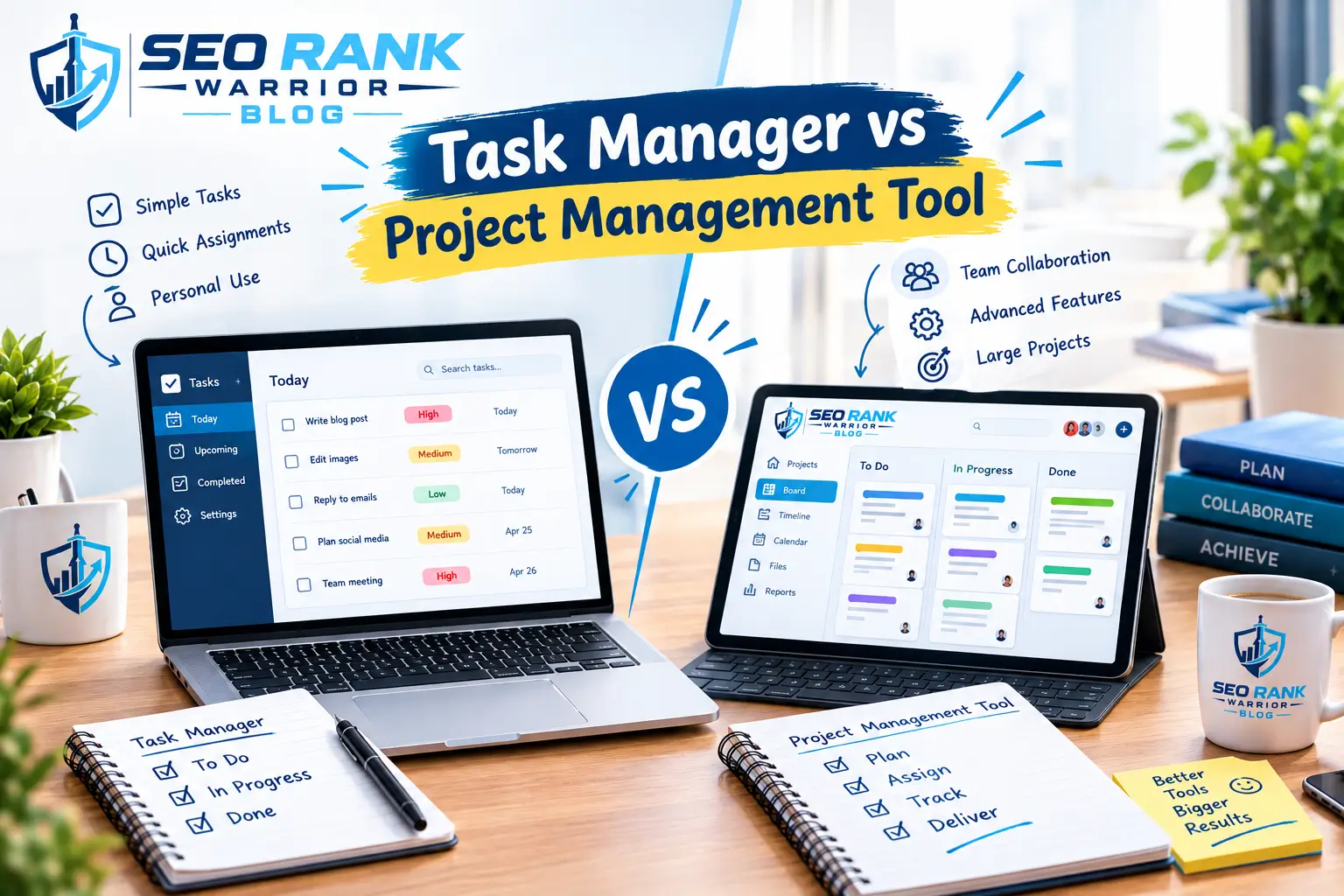
The two overlap, but their focus differs. A task manager centres on individual tasks. A project management tool covers whole projects, adding timelines, task dependencies, resource planning, and reporting.
A task manager is usually enough for one person or a small team with straightforward work. A larger platform makes sense when projects have many phases, interdependent tasks, several teams, and a need for formal reporting.
Who Should Use a Task Manager?
- Students: track assignments, exams, and study plans.
- Freelancers: keep multiple clients and deadlines visible.
- Employees: manage recurring duties and incoming requests.
- Small businesses: coordinate a few people without heavy software.
- Project teams: share ownership and progress.
- Content creators: follow each piece from idea to publication.
- Developers: track bugs, features, and reviews.
- Anyone managing many responsibilities: work, home, and personal commitments.
Not everyone needs one. If your workload is light and easy to remember, a paper list may be all you need.
How to Choose a Task Manager
- Your workload: a handful of tasks needs far less than dozens across several projects.
- Personal vs team use: teams need assignments and sharing; individuals usually want speed.
- Required features: write down must-haves first, because extras add clutter.
- Ease of use: a tool people avoid is worse than a simpler one they use.
- Device support: check whether it works on the phone and computer you actually use.
- Integrations: connections to your calendar, email, or chat can reduce double entry.
- Collaboration: look for comments, sharing, and permission settings if others are involved.
- Pricing: compare free and paid plans against what you really need.
- Privacy and data management: check where your data is stored and who can see it.
- Scalability: consider whether the tool will still work if your team or workload grows.
Examples of Task Management Tools
Well-known options include Trello, Todoist, Microsoft To Do, Asana, ClickUp, and Notion. They differ in layout, depth, and audience: some suit personal lists, others team projects, others flexible workspaces. Features and pricing change often, so check each provider’s official website before deciding.
Task Managers and Productivity Tools
A task manager is one category within the wider world of productivity tools, alongside calendar tools, note-taking tools, time management tools, project management tools, habit trackers, automation tools, and collaboration tools. Many people combine two or three of these. To see how they fit together, read our guide to Productivity Tools.
Common Task Management Mistakes
- Too many tasks: keep only what you will realistically act on, and park the rest on a “someday” list.
- Vague tasks: write “Send revised quote to client,” not “Client stuff.”
- Unrealistic deadlines: estimate honestly and add a buffer.
- Ignoring priorities: choose the few tasks that matter most each day.
- Too many tools: pick one main place for tasks.
- No review: schedule a short weekly check of unfinished items.
- No clear next action: start each task with a verb and a concrete first step.
- An overcomplicated tool: choose the simplest option that meets your needs.
FAQs – What Is a Task Manager?
What is a task manager?
A task manager is a tool for creating, organising, prioritising, tracking, and completing tasks. The term can also mean a built-in system utility that shows running programs, depending on context.
What is a task manager used for?
It is used to keep tasks, deadlines, and progress in one place. Individuals use it to stay organised, and teams use it to assign work and track who is doing what.
Is a task manager the same as a to-do list?
No. A to-do list records tasks, while a task manager adds priorities, deadlines, recurring tasks, projects, assignments, reminders, and progress tracking.
How do I open a task manager?
For a productivity app, launch it like any other app or open its website. For an operating-system utility, the steps depend on your device, so follow the guide for your system.
How do I start the task manager?
If you mean an app, open it and add your first task. If you mean a system utility, start it using the method for your operating system.
Conclusion
Now that you know what a task manager is, the takeaway is simple: it is a tool for organising, prioritising, tracking, and completing work, and its features depend on the type you choose. The right option depends on your workflow, device, workload, and the features you actually need